
Track and Compare - Tools for Writers
If you are a writer - checkout these tools and tips from a Self-Published Author.

As self-published authors, we're wearing multiple hats—writer, editor, publisher, and more! An essential part of the writing process involves keeping track of the changes you make to your manuscript during the editing and revision process. Tracking changes and comparing drafts isn't just a technical exercise—it's essential to your creative process and professional growth.
Why bother tracking changes to your manuscript?
It preserves your creative journey. Each version of your manuscript represents a specific moment in your creative thinking. When you track changes, you are documenting your evolution as a storyteller. That subplot you removed? It might spark a different story later. The character whose voice you refined over three drafts? These versions show your growing understanding of human nature.
It builds confidence in your editing decisions. When you can see what you've cut, added, or modified, you make more deliberate choices. Rather than wondering if you've improved the text or just changed it, tracked changes give you concrete evidence of your editing wisdom (and occasional missteps).
It prevents "editing amnesia." We've all experienced that moment of doubt: "Wait, did I already fix that scene?" or "Didn't this paragraph used to be better?" With tracked changes, you never have to wonder—you can see exactly what you had before and make an informed decision about which version serves your story best.
It reveals your writing patterns. As you make change tracking a habit, you'll notice trends in your editing. Maybe you consistently overwrite descriptions in early drafts or struggle with dialogue tags. Looking back at earlier drafts can be both humbling and empowering. "Wow, did I really write that clunky dialogue?" or "Hey, I actually nailed that scene from the beginning!" This self-awareness becomes a powerful tool for improving your first drafts and streamlining your revision process for future projects.
It provides emotional distance. Seeing your edits marked in different colors helps you separate yourself from your words, making it easier to evaluate them objectively. What seemed perfect yesterday might clearly need work today, and tracking changes helps you see that without the emotional attachment.
It protects your efforts and voice. Remember that character you killed off in chapter three but now wish you hadn't? With tracked changes, you can go back and resurrect them without starting from scratch. When you share your work with beta readers or that friend who's "really good at grammar," tracking changes makes it super easy to see their suggestions without losing your original voice. You can accept what works and ignore what doesn't— you maintain control.
Now, if I've convinced you to give tracking changes a try, here's how to do it in Microsoft Word (it's easier than you think):
Turn on tracking by clicking the "Review" tab and hitting "Track Changes."
That's it!
Now everything you add shows up in color, and deletions get crossed out but remain visible. When someone else reviews your document with tracking on, their changes appear in a different color so you know who suggested what. You can accept or reject each suggestion and decide which one serves your manuscript.
TIP! Name your files clearly and consistently! A name like "MysteryNovel_Draft2_Jane's_Comments.docx" will save you from opening twenty files named "Final_FINAL_Actually_Final.docx" later on. Trust me on this.
But wait! What if you've already written the manuscript without tracking turned on?
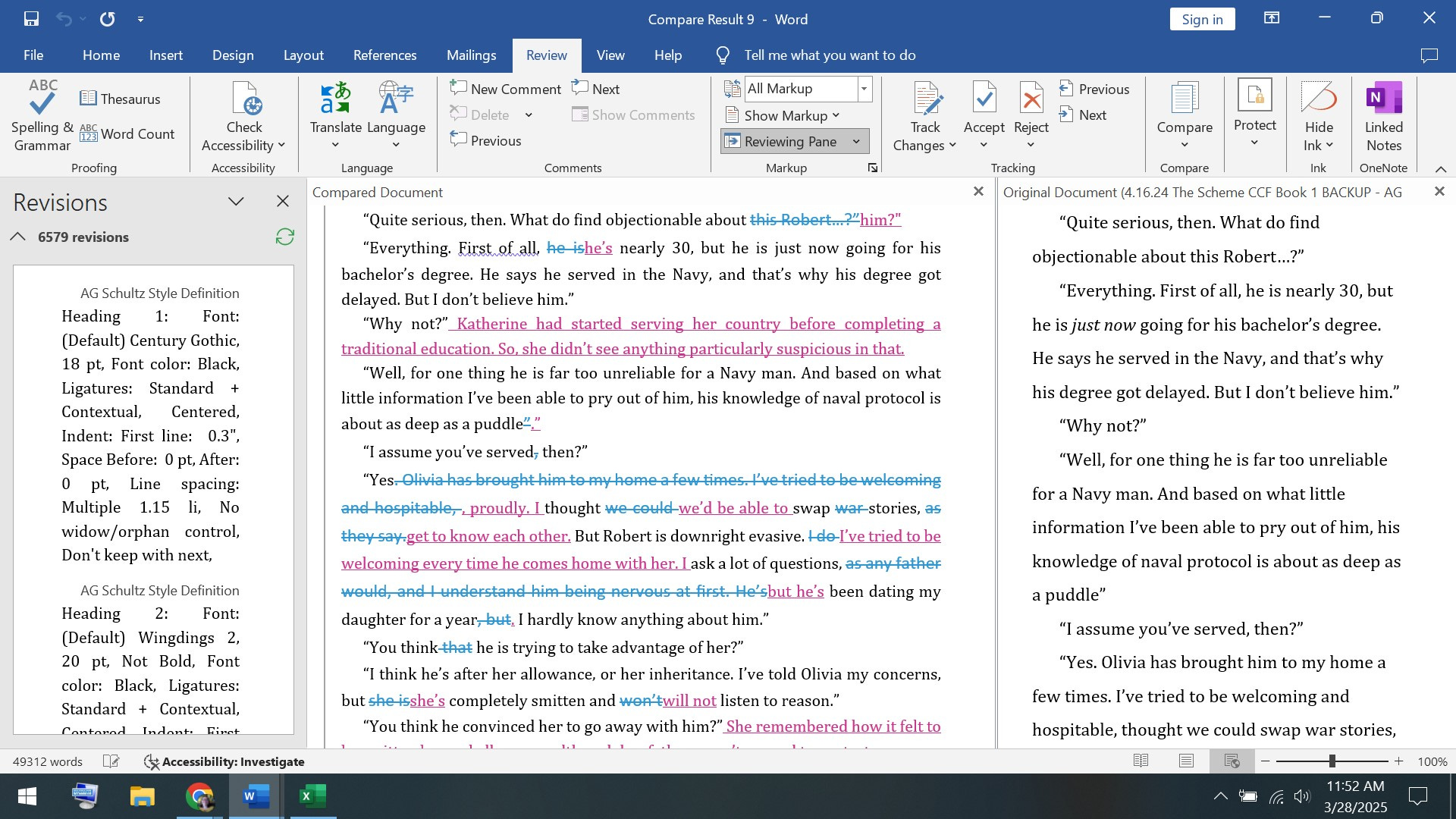
Microsoft Word has a magical feature called COMPARE which allows you to see a side-by-side comparison of two drafts. In some ways, I like this feature even better than Track Changes. See the picture for a screen shot of the Compare tool in action.
Here is how to use Compare in Word:
Open a new document in Microsoft Word.
In the Review tab, click Compare. A drop-down menu will appear. Click the Compare option in this drop-down menu. (Usually the first option.)
At this point, a new window will open where you can select your files. Click the folder icon next to the Original Document section on the left. This will open your files. Search through them until you find the original version of the Word document that you want to compare, and select it.
Now, head to the Revised Document section. Just as you did with the Original Document section, click on the Folder icon and find the new version of the document you want to compare.
Click OK, and wait for Word to compare the two documents for differences. Depending on the size of the files, it may take a minute.
Once Word has compared them, it will show you a three-pane Word document:
The center pane shows you the Revised Document with changes highlighted. In my screenshot, it shows up in pink and blue because those are the colors on my computer. Yours will likely be in the program's default colors. You can edit the text in this central pane as needed.
The right pane shows the Original Document. You cannot edit this pane.
The left pane lists all the differences that Word has found between the two documents, including formatting and font changes. By clicking changes, you can make the right and center panes zoom to the appropriate point in the document. As you can see in the screen shot, I had 6579 revisions between my first draft and final draft of my 50k word book.
This feature is also fantastic when someone sends back an "edited" manuscript but has not marked their changes in any way. You can compare their notes to your original and decide which changes to accept or reject. Remember, the center pane can be edited, the other panes are for reference and navigation. Be sure to save your revision with a unique file name.
TIP! Stay organized. When saving multiple drafts, it can become wearisome to find the working version. You probably have a folder set aside for your manuscript. I always create another folder within my manuscript folder called "old drafts." When I believe I am finished with a draft and no longer need access to it, I drag and drop it into the Old Drafts folder. It keeps the file out of sight, but if I do later need to go back to an older version of the manuscript, I still have easy access to it.
Tracking changes isn't just about catching errors—it's about understanding your own evolution as a writer and making deliberate, informed decisions about your work.
What about you? Have you been tracking changes all along, or is this something you might start doing with your current project? Either way, your future self will thank you when you're polishing that manuscript for publication!